

Home and notifications
Home shows what needs you; Overview shows how work is going across the workspace. This page also covers the Slack DMs and emails Viberglass sends, and how to turn them on.
Home
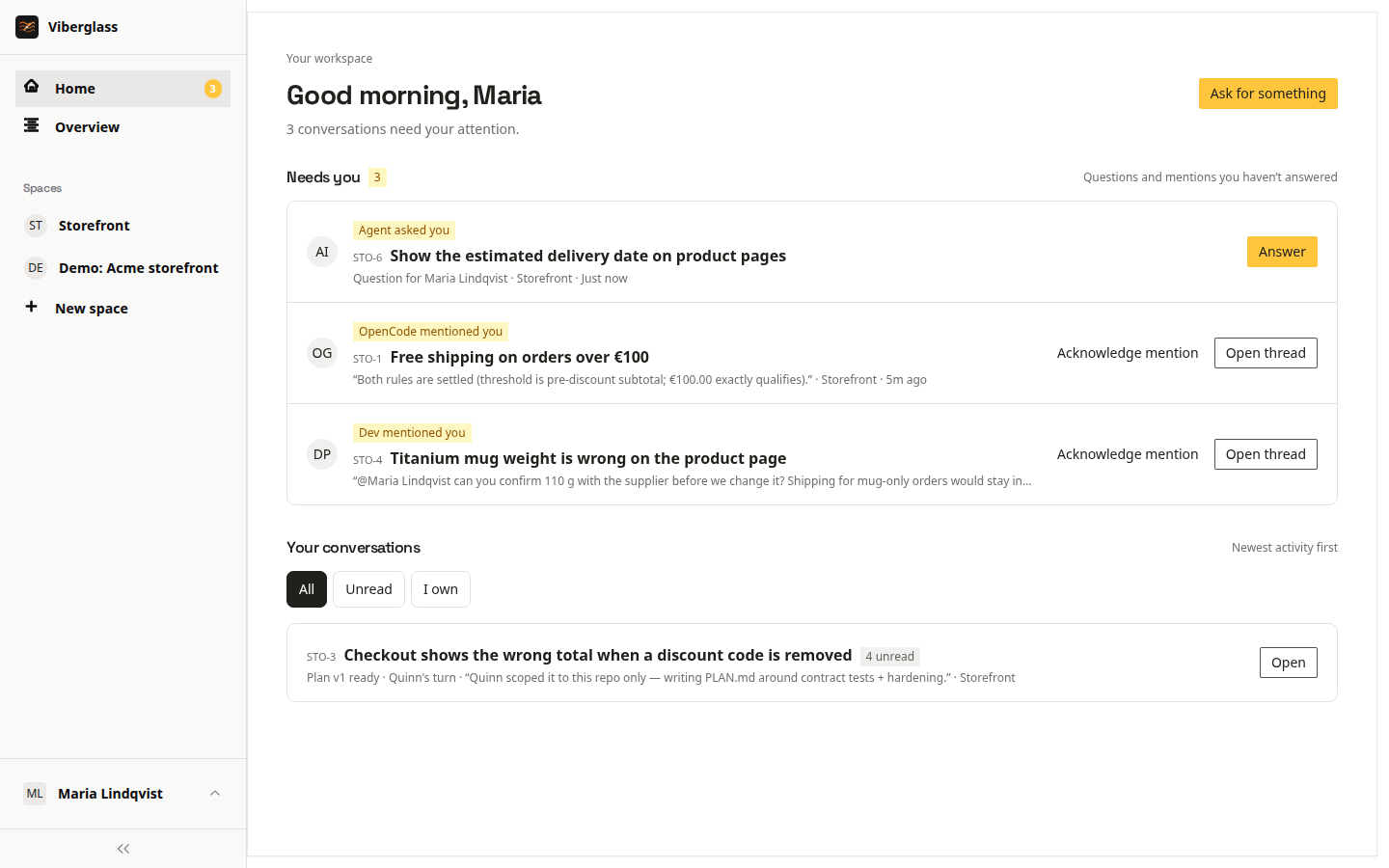
Home is where you land. At the top it says how many conversations need your attention.
Needs you lists the tasks where it's your move. Each row says why:
- Agent asked you: the agent has a question for you.
- Ready for your review: the agent finished its work and asked you to look at it.
- A name, such as "Maria mentioned you": someone mentioned you.
- Your move: the task waits on you, for example as its owner or a reviewer.
Your conversations lists the other tasks you're on, newest activity first. Show filters them: All, Unread, or I own. A number on a row counts its new messages; the number on Home in the sidebar counts things that need you.
Ask for something starts a new task. See Tasks.
Acknowledge a mention
If a mention needs no reply, choose Acknowledge mention, on Home or on the task. It stops being your move. The task itself is unchanged.
Next steps
After setup, admins see a short Next steps list on Home: invite your team, connect Slack, connect your tracker. Each item ticks itself off when it's done, and the list can be dismissed.
Overview
Overview shows the tasks in every space you can see, each counted once:
- Needs attention: failed, paused, asking a question, or waiting on someone for more than a day. Each one names its next move.
- Agent working: tasks an agent is working on.
- Waiting on people: someone's move, for less than a day.
- Not started: nothing asked for yet.
It also shows Recent outcomes. Filter it to one space at the top. Viewers land on Overview instead of Home.
Notifications
Viberglass tells people about changes on their tasks. You aren't told about your own actions.
- Review requests, when you're added as a reviewer.
- New tasks you're made owner of.
- Mentions, including when the agent mentions you with its result.
- The agent's questions to you.
- Finished plans and builds, for the requester, owner and watchers.
- Failed runs: to the task's owner, or to workspace admins when the setup needs fixing.
- Merged pull requests and finished tasks, for the requester and owner.
Everything that needs you shows on Home. Beyond that, where notifications go depends on what your workspace has set up:
- Slack DMs, for people who linked their Slack account: review requests, mentions, questions, new tasks you own and failed runs. Progress on a task that started in Slack is posted in its Slack thread instead of a DM.
- Email, when the workspace has email set up: failed setups and finished tasks.
Settings → Notifications
Open Settings → Notifications to see what's set up for you.
- Slack: choose Link Slack to connect your Slack account. Viberglass finds you in Slack by your email address, so it needs to match. Unlink stops the DMs.
- Email: shows the address messages go to, or says email isn't set up on the workspace. Admins can choose Send test email to check delivery.