Files and artifacts
A Files space is a space without a Git repository, for work that isn't code: documents, reports, presentations, data. Its tasks share one set of files that people and agents work on, kept between runs. What an agent delivers is an artifact, which Viberglass keeps in versions you can preview and download.
Creating a Files space
When you create a space, set Space backing to Files instead of Git repository. The backing can't be changed after the space is created. Members and admins create spaces.
A Files space has two more pages in the sidebar under its name: Files and Artifacts.
The space's files
Files lists everything in the space's files, folder by folder, with each file's size. Everyone who can see the space can open the page and download files. Members and admins can also change them:
- Upload adds a file of up to 25 MB. Save as is its path in the space's files, such as
notes/brief.md; a file already at that path is replaced. - New text file creates a Markdown or plain-text file and opens it in the editor.
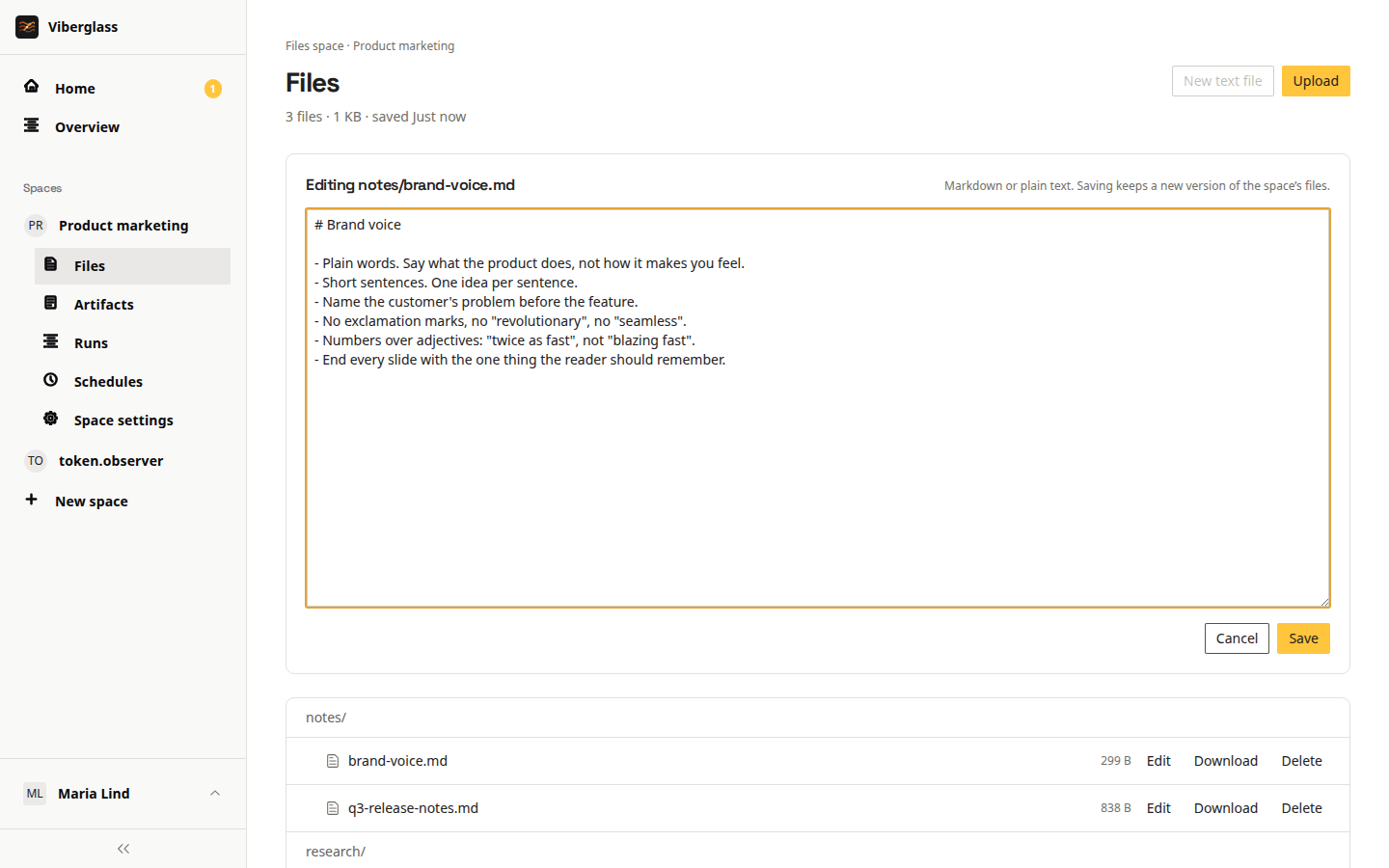
- Edit opens a text file in the editor: Markdown, plain text, CSV, JSON or YAML, up to 1 MB. Choose Save when you're done.
- Delete removes a file. Artifact versions made from it keep their copy.
The .viberglass folder is kept for Viberglass, so you can't put files there.
If someone else saved a file while you were editing it, your save is refused rather than overwriting their change. Your text stays in the editor: copy what you need, then choose Load their version.
While a run has the files
The agent works on a copy of the files during a run and saves them when it finishes. While a run is going, the page says so, and uploads, edits and deletions you make wait under Changes waiting for a run. They're saved once the run has saved. Cancel change drops one before then.
If a run is cancelled, it saves the files as they were when it stopped, and the turn says "Saved the files as they were when the run stopped". If it couldn't save in time, the turn says nothing was saved, and the space's files stay as they were before the run.
If the run changed the same file first, your change isn't saved. It stays on the list with Download your version, so nothing you wrote is lost, until you choose Dismiss.
Tasks in a Files space
Create a task as in any space and describe the deliverable you want, such as "Prepare the quarterly presentation". See Tasks.
The agent works in the space's files on every turn, whether it's replying, writing a plan or making the artifact, and what it changes is kept for the next run and every other task in the space. Each turn says what it saved, such as "Saved files · 2 added, 1 changed · 14 files". Runs in the same space take turns: a run that has to wait says "Waiting for another run to save this space's files".
Most Files work doesn't need a plan, so Create artifact is the first suggestion under the thread. Write the plan is still offered next to it when you want to agree on the approach first. Once the task has an artifact, the suggestion is Revise artifact, and the agent's next version replaces it as the current one. A reply or plan can make the deliverable too, such as a presentation the task asked for, and it's kept as an artifact the same way; Create artifact is the turn that always makes one. Who can ask for an artifact is the same as who can ask for code; see Getting started.
There are no pull requests or plan parts in a Files space, and nothing to take over. Beside the thread, the task's page shows its artifact, previewed at its current version, with the plan in a tab next to it. When the work is finished, choose Actions → Mark done. Reopen task opens it again.
A task started from Slack works the same way in its Slack thread. The thread shows what each turn saved and links to the artifact versions it made, and offers Create artifact or Revise artifact, with Mark done beside it. See Slack.
Schedules run in Files spaces too. A scheduled run works on the space's files and takes its turn like any other run, and an artifact it declares appears on the Artifacts page without a task. See Schedules.
Artifacts
An artifact is something an agent made for a task: a Markdown document, a web page or presentation, an image, a PDF, a CSV or JSON file, or another file. A turn that made one shows it in the thread with its version and format, and Preview and Download.
The Artifacts page lists every artifact the space's tasks and schedules have made, newest first, with its current version, its format, and a link to its task when it has one. Open one to see it:
- Markdown, text, CSV and JSON show on the page. A long file shows its start; download it to see the rest.
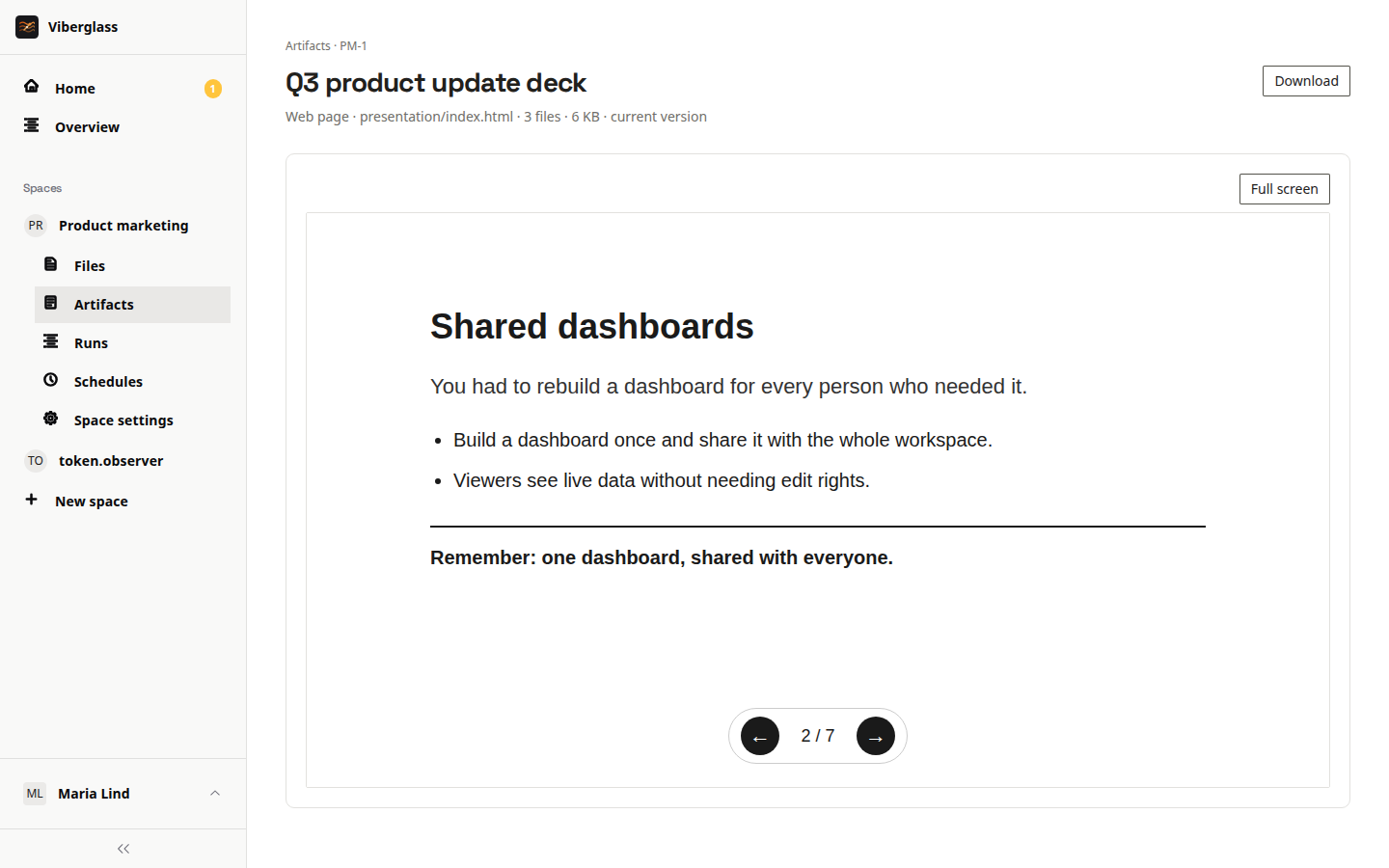
- Web pages, presentations, images, SVG and PDFs open in a frame. Full screen fills the screen with it, which suits a presentation.
- Other files, and files too large to preview, have Download.
- Download gets the file, or a zip when the artifact is made of several files, such as a web page with its images.
When an artifact has more than one version, pick one from the list above the preview. Each says when it was made, and whether by an agent or edited by a person. Saving or uploading a file in Files that's part of an artifact's current version makes a new version of that artifact, so a fix you make by hand shows up here too. Only the latest versions are kept; an older one shows as no longer kept, with a link to the current version.
Previews open from a separate address with no access to Viberglass or your sign-in, and they can't load anything from the internet. A web page or presentation the agent makes has its scripts, styles, fonts and images beside it for that reason. If an installation hasn't set up previews, artifacts can still be downloaded.